WEEK 1 : ELEARNING & MOOCs
Read the following texts in order to do this week's activities.
1. A definition of distance learning.
A type of education, typically college-level, where students work on their own at home or at the office and communicate with faculty and other students via e-mail, electronic forums, videoconferencing, chat rooms, bulletin boards, instant messaging and other forms of computer-based communication.
Most distance learning programs include a computer-based training (CBT) system and communications tools to produce a virtual classroom. Because the Internet and World Wide Web are accessible from virtually all computer platforms, they serve as the foundation for many distance learning systems.
Education via the Internet, network, or standalone computer. e-learning is essentially the network-enabled transfer of skills and knowledge. e-learning refers to using electronic applications and processes to learn. e-learning applications and processes include Web-based learning, computer-based learning, virtual classrooms and digital collaboration. Content is delivered via the Internet, intranet/extranet, audio or video tape, satellite TV, and CD-ROM
e-learning was first called "Internet-Based training" then "Web-Based Training" Today you will still find these terms being used, along with variations of e-learning such as elearning, Elearning, and eLearning.
3. Advantages and disadvantages of elearning.
There are many advantages to online and computer-based learning when compared to traditional face-to-face courses and lectures. There are a few disadvantages as well.
Advantages of online or computer-based learning
- Class work can be scheduled around work and family
- Reduces travel time and travel costs for off-campus students
- Students may have the option to select learning materials that meets their level of knowledge and interest
- Students can study anywhere they have access to a computer and Internet connection
- Self-paced learning modules allow students to work at their own pace
- Flexibility to join discussions in the bulletin board threaded discussion areas at any hour, or visit with classmates and instructors remotely in chat rooms
- Instructors and students both report eLearning fosters more interaction among students and instructors than in large lecture courses
- eLearning can accommodate different learning styles and facilitate learning through a variety of activities
- Develops knowledge of the Internet and computers skills that will help learners throughout their lives and careers
- Successfully completing online or computer-based courses builds self-knowledge and self-confidence and encourages students to take responsibility for their learning
- Learners can test out of or skim over materials already mastered and concentrate efforts in mastering areas containing new information and/or skills
Disadvantages of online or computer-based learning
- Learners with low motivation or bad study habits may fall behind
- Without the routine structures of a traditional class, students may get lost or confused about course activities and deadlines
- Students may feel isolated from the instructor and classmates
- Instructor may not always be available when students are studying or need help
- Slow Internet connections or older computers may make accessing course materials frustrating
- Managing computer files and online learning software can sometimes seem complex for students with beginner-level computer skills
- Hands-on or lab work is difficult to simulate in a virtual classroom
A Massive Open Online Course (MOOC) is an online course aimed at unlimited participation and open access via the web. In addition to traditional course materials such as videos, readings, and problem sets, MOOCs provide interactive user forums that help build a community for students, professors, and teaching assistants (TAs). MOOCs are a recent development in distance education.
A massive open online course (MOOC) is a free Web-based distance learning program that is designed for the participation of large numbers of geographically dispersed students. The acronym MOOC is pronounced with a long oo sound;
A MOOC may be patterned on a college or university course or may be less structured. Although MOOCs don't always offer academic credits, they provide education that may enable certification, employment or further studies.
The word MOOC was coined in 2008 by Dave Cormier, from the University of Prince Edward Island for a course offered by the University of Manitoba, "Connectivism and Connective Knowledge." There were 25 tuition-paying students from university and 2,300 non-paying students from the general public who took the course online. In 2011, the Massachusetts Institute of Technology (MIT) OpenCourseWare (OCW) became the first large collections of MOOC resources made available by a university. In 2012, MIT and Harvard spearheaded the edX initiative for the promotion of MOOCs.
Who are the major players?
Several start-up companies are working with universities and professors to offer MOOCs. Meanwhile, some colleges are starting their own efforts, and some individual professors are offering their courses to the world. Right now four names are the ones to know:
A nonprofit effort run jointly by MIT, Harvard, and Berkeley.
Leaders of the group say they intend to slowly add other university partners over time. edX plans to freely give away the software platform it is building to offer the free courses, so that anyone can use it to run MOOCs.
A for-profit company founded by two computer-science professors from Stanford.
The company’s model is to sign contracts with colleges that agree to use the platform to offer free courses and to get a percentage of any revenue. More than a dozen high-profile institutions, including Princeton and the U. of Virginia, have joined.
Another for-profit company founded by a Stanford computer-science professor.
The company, which works with individual professors rather than institutions, has attracted a range of well-known scholars. Unlike other providers of MOOCs, it has said it will focus all of its courses on computer science and related fields.
A nonprofit organization founded by the MIT and Harvard graduate Salman Khan.
Khan Academy began in 2006 as an online library of short instructional videos that Mr. Khan made for his cousins. The library—which has received financial backing from the Bill & Melinda Gates Foundation and Google, as well as from individuals—now hosts more than 3,000 videos on YouTube. Khan Academy does not provide content from universities, but it does offer automated practice exercises, and it recently offered a curriculum of computer-science courses. Much of the content is geared toward secondary-education students.
A for-profit platform that lets anyone set up a course.
The company encourages its instructors to charge a small fee, with the revenue split between instructor and company. Authors themselves, more than a few of them with no academic affiliation, teach many of the courses.
References :
http://en.wikipedia.org/wiki/Massive_open_online_course
http://whatis.techtarget.com/definition/massively-open-online-course-MOOC
http://chronicle.com/article/What-You-Need-to-Know-About/133475/
What is a MOOC?
Welcome to the Brave New World of MOOCs
WEEK 2 : LIVING WITH COMPUTERS
A computer is an electronic device, which executes software programs. It is made up of two parts - hardware and software . The computer processes input through input devices like mouse and keyboard. The computer displays output through output devices like a monitor and printer. The size of a computer varies considerably from small personal computers to gigantic supercomputers which require an entire building to host them. The speed also has a very large range. Computers have become indispensable in today's world. Let us take a look at some of their uses.
Word Processing - Word Processing software automatically corrects spelling and grammar mistakes. If the content of a document repeats, you don't have to type it each time. You can use the copy and paste features. You can print documents and make several copies. It is easier to read a word-processed document than a handwritten one. You can add images to your document.
Internet - It is a network of almost all the computers in the world. You can browse through much more information than you could do in a library. That is because computers can store enormous amounts of information. You also have very fast and convenient access to information. Through E-Mail, you can communicate with a person sitting thousands of miles away in a few seconds. Chat software enables one to chat with another on a real-time basis. Video conferencing tools are becoming readily available to the common man.
Digital video or audio composition - Audio or video composition and editing have been made much easier by computers. It no longer costs thousands of dollars of equipment to compose music or make a film. Graphics engineers can use computers to generate short or full-length films or even to create 3D models. Anybody owning a computer can now enter the field of media production. Special effects in science-fiction and action movies are created using computers.
Medicine - You can diagnose diseases. You can learn the cures. Software is used in magnetic resonance imaging to examine the internal organs of the human body. Software is used for performing surgery. Computers are used to store patient data.
Mathematical Calculations - Thanks to computers, which have computing speeds of over a million calculations per second we can perform the biggest of mathematical calculations.
Banks - All financial transactions are done by computer software. They provide security, speed and convenience.
Telecommunications - Software is widely used here. Also all mobile phones have software embedded in them.
Defense - There is software embedded in almost every weapon. Software is used for controlling the flight and targeting in ballistic missiles. Software is used to control access to atomic bombs.
Business - Shops and supermarkets use software, which calculate the bills. Taxes can be calculated and paid online. Accounting is done using computers. One can predict future trends of business using artificial intelligence software. Software is used in major stock markets. One can do trading online. There are fully automated factories running on software.
ATM machines - The computer software authenticates the user and dispenses cash.
News - There are many websites through which you can read the latest or old news.
Robotics - Robots are controlled by software.
Planning and Scheduling - Software can be used to store contact information, generating plans, scheduling appointments and deadlines.
Weather analysis - Supercomputers are used to analyze and predict weather.
Computers have leapfrogged the human society into another league. It is used in each and every aspect of human life. They will spearhead the human quest of eradicating social problems like illiteracy and poverty. It is difficult to imagine a world bereft of computers. This revolutionary technology is indeed a boon to the human race. May computers continue to shower their blessings to us.
Adapted from: http://www.buzzle.com/articles/uses-of-computer.html
Digitisation is the process of converting information into a digital format. It is something that affects everyday life, and will continue to grow into the future. With the use of mobile phones, computers, internet, gaming consoles and tablets on the rise, so too has the accessibility to this digitisation increase. This presentation gives some examples of how digitisation is used, and influences everyday tasks for every member of the family.
Change the study mode (below the exercise, on the right) in order to memorize these words.
Match the computer-based tasks with the fields they are related to.
WEEK 3 : WHAT IS A COMPUTER?
A computer is an electronic machine which can accept data in a certain form, process the data, and give the results of the processing in a specified format as information.
First, data is fed into the computer’s memory. Then, when the program is run, the computer performs a set of instructions and processes the data. Finally, we can see the results (the output) on the screen or in printed form.


A computer system consists of two parts: hardware and software. Hardware is any electronic or mechanical part you can see or touch. Software is a set of instructions, called a program, which tells the computer what to do. There are three basic hardware sections the processor, also called the central processing unit (CPU), main memory and peripherals.
Perhaps the most influential component is the central processing unit. Its function is to execute program instructions and coordinate the activities of all the other units. In a way, it is the brain of the computer.
The programs and data which pass through the processor must be loaded into the main memory (RAM and ROM) in order to be processed. Therefore, when the user runs a program, the CPU looks for it on the hard disk and transfers a copy into the RAM chips.
RAM (Random Access Memory) is volatile- that is, its information is lost when the computer is turned off.
However, ROM (Read Only Memory) is non-volatile and contains instructions and routines for the basic operations of the CPU. The BIOS (Basic Input/Output System) uses ROM to control communication with peripherals.
Peripherals are the physical units attached to the computer. They include storage devices and input/output devices. Storage devices (hard drives, DVD drives or flash drives) provide a permanent storage of both data and programs. Disk drives are used to read and write data on disks.
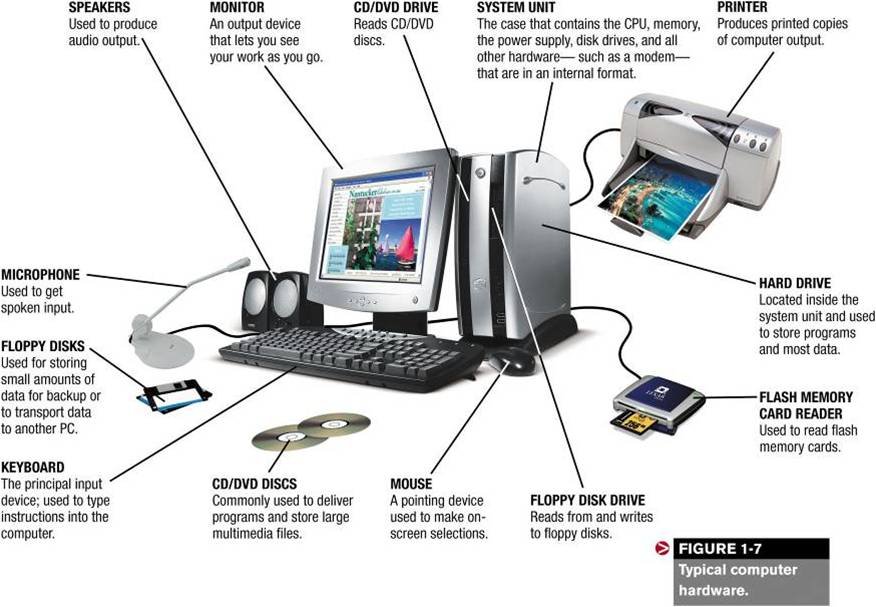
Input devices enable data to go into the computer’s memory. The most common input devices are the mouse and the keyboard.
Output devices enable us to extract the final product from the system. For example, the computer shows the output on the monitor or prints the results onto paper by means of a printer.
On the rear panel of the computer, there are several ports into which we can plug a wide range of peripherals – a modem, a digital camera, a scanner, etc. they allow communication between the computer and the devices. Modem desktop PCs have OSB ports and memory card readers on the front panel.
https://www.youtube.com/watch?v=7cXEOWAStq4
Buying a laptop:
The following web page gives advice to buy a laptop.
http://reviews.cnet.com/laptop-buying-guide/
WEEK 4 :INPUT & OUTPUT DEVICES (= PERIPHERALS)
The computer will be of no use unless it is able to communicate with the outside world. Input/Output devices are required for users to communicate with the computer. In simple terms, input devices bring information INTO the computer and output devices bring information OUT of a computer system. These input/output devices are also known as peripherals since they surround the CPU and memory of a computer system.
Input devices and output devices are computer hardware that enable an operator to interact with the computer. Without input devices, a computer user would not be able to feed instructions to, or send and store information in, a computer; without output devices, the computer would not be able to give processed information back to the user.
Some commonly used Input/Output devices are listed in the table below.

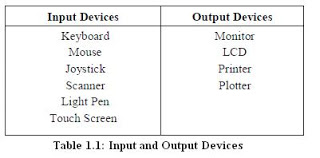
Input Devices
The computer keyboard is used to enter text information into the computer, as when you type the contents of a report. The keyboard can also be used to type commands directing the computer to perform certain actions. Commands are typically chosen from an on-screen menu using a mouse, but there are often keyboard shortcuts for giving these same commands.
In addition to the keys of the main keyboard (used for typing text), keyboards usually also have a numeric keypad (for entering numerical data efficiently), a bank of editing keys (used in text editing operations), and a row of function keys along the top (to easily invoke certain program functions).
Improper use or positioning of a keyboard can lead to Repetitive-Stress Injuries (RSIs). Some ergonomic keyboards are designed with angled arrangements of keys and with built-in wrist rests that can minimize your risk of RSIs.
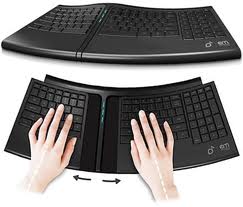
An ergonomic keyboard
Most keyboards attach to the PC via a PS/2 connector or USB port (newer).

Pointing Devices
The graphical user interfaces (GUIs) in use today require some kind of device for positioning the on-screen cursor. Typical pointing devices are: mouse, touch pad, joystick, and touch screen...
Pointing devices, such as a mouse, connected to the PC via a serial ports (old), PS/2 mouse port (newer), or USB port (newest).
Mouse
The mouse is a small device used to point to a particular place on the screen and select in order to perform one or more actions. It can be used to select menu commands, size windows, start programs etc.
A cordless or wireless mouse communicates with the computer via BlueTooth so that a cord is not needed (but such mice need internal batteries).
The most conventional kind of mouse has two buttons on top: the left one being used most frequently.
Mouse Actions
Left Click : Used to select an item.
Double Click : Used to start a program or open a file.
Right Click : Usually used to display a set of commands.
Drag and Drop : It allows you to select and move an item from one location to another. To achieve this place the cursor over an item on the screen, click the left mouse button and while holding the button down move the cursor to where you want to place the item, and then release it.
Touch pad
Most laptop computers today have a touch pad pointing device. You move the on-screen cursor by sliding your finger along the surface of the touch pad. The buttons are located below the pad, but most touch pads allow you to perform “mouse clicks” by tapping on the pad itself.
Touch pads have the advantage over mice that they take up much less room to use.
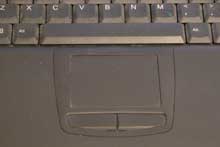
A laptop touchpad
Joysticks
The joystick is a vertical stick which moves the graphic cursor in a direction the stick is moved. It typically has a button on top that is used to select the option pointed by the cursor. Joystick is used as an input device primarily used with video games, training simulators and controlling robots.

A joystick
Touch screen
It allows the user to operate/make selections by simply touching the display screen. Common examples of touch screen include information kiosks, and bank ATMs
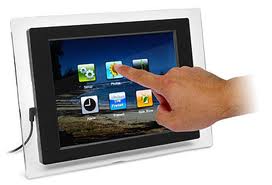
A touch screen
Scanners
A scanner is a device that images a printed page or graphic by digitizing it, producing an image made of tiny pixels of different brightness and color values which are represented numerically and sent to the computer. Scanners scan graphics, but they can also scan pages of text which are then run through OCR (Optical Character Recognition) software that identifies the individual letter shapes and creates a text file of the page's contents.
Hand-held scanners are commonly seen in big stores to scan codes and price information for each of the items. They are also termed the bar code readers.
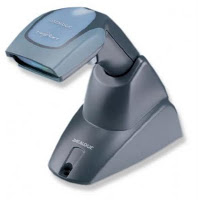
A bar code reader
The Speech Input Device
The “Microphones - Speech Recognition” is a speech Input device. To operate it, we require using a microphone to talk to the computer. Also we need to add a sound card to the computer. The Sound card digitizes audio input into 0/1s .A speech recognition program can process the input and convert it into machine-recognized commands or input.
Webcam
A camera which records moving pictures and sound and allows these to be broadcast on the Internet as they happen
Digital camera
A digital camera can store many more pictures than an ordinary camera. Pictures taken using a digital camera are stored inside its memory and can be transferred to a computer by connecting the camera to it. A digital camera takes pictures by converting the light passing through the lens at the front into a digital image.
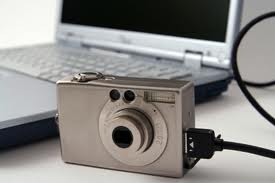
A digital camera
Output Devices
Monitor is an output device that resembles the television screen. The monitor is associated with a keyboard for manual input of characters and displays the information as it is keyed in. It also displays the program or application output. Like the television, monitors are also available in different sizes.
Printer
Printers are used to produce paper (commonly known as hard copy) output.
When we talk about printers we refer to two basic qualities associated with printers: resolution, and speed. Print resolution is measured in terms of number of dots per inch (dpi). Print speed is measured in terms of number of characters printed in a unit of time and is represented as characters-per-second (cps), lines-per-minute (lpm), or pages-per-minute (ppm).
Sound Output
Computers also produce sound output, ranging from simple beeps alerting the user, to impressive game sound effects, to concert quality music. Two components are needed: Sound card – Plays contents of digitized recordings, Speakers – Attached to sound card. Multimedia is a term describing computer output that includes sound, text, graphics, movies, and animation. A sound card is an example of a multimedia output device (as is a monitor that can display graphics).
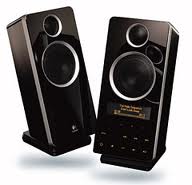
Some common Input / Output devices that you will come accross in your everyday life.
Use some of the highlighted words in the text to complete this crossword puzzle:
WEEK 5:THE INTERNET & THE WEB
THE INTERNET (Text & reading comprehension questions)
A. What the Internet is…
The Internet is an International computer Network made up of thousands of networks linked together. All these computers communicate with one another, they share data, resources, transfer information etc. To do it they need to use the same language or protocol: TCP/IP (Transmission Control Protocol / Internet Protocol) and every computer is given an address or IP number. This number is a way to identify the computer on the Internet.
B. Getting connected
To use the Internet, you basically need a computer, the right connection software and a modem to connect your computer to a telephone line and then access your ISP (Internet Service Provider)
The modem (modulator-demodulator) converts the digital signals stored in the computer into analogue signals that can be transmitted over telephone lines. There are 2 basics types: external with a cable that is plugged into the computer via USP port, and internal, an expansion card inside the computer. A PC card modem is a different, more versatile option for laptops and mobile phones.
At first most computers used a dial-up telephone connection that worked through the standard telephone line. Now a broadband connection, a high data transmission rate Internet connection, has become more popular: either ADSL (Asymmetric Digital Subscriber Line), which allows you to use the same telephone line for voice and fast access to the Internet, or cable, offered by most TV cable providers.
The basic equipment has changed drastically in the last few years. You no longer need a computer to use the Internet. Web TV provides email and access to the Web via a normal TV set plus a high-speed modem. More recently, mobile phones and PDAs, Personal Digital Assistant, also allow you to go online with wireless (Wi-Fi) connections, without cables.
Telephone lines are not essential either. Satellites orbiting the earth enable your computer to send and receive Internet files. Finally, the power-line Internet, still under development provides access via a power plug.
C. Components of the Internet
The Internet consists of many systems that offer different facilities to users.
· The Web (WWW): a collection of files or pages containing links to other documents on the net.
· Email: for the exchange of messages and attached files.
· Mailing lists based on programs that send messages on a certain topic to all the people who have subscribed the list.
· Chat and instant messaging: for real-time conversation.
· Internet telephone: to make voice calls via the Internet.
· Video conference: a system that allows the transmission of video and audio signals in real time sot the participants can exchange data, talk and see one another on the screen.
· File Transfer Protocol (FTP): used to transfer files between computers.
READING COMPREHENSION:
Are the following statements true or false?
Which Internet system would you use to do the task?
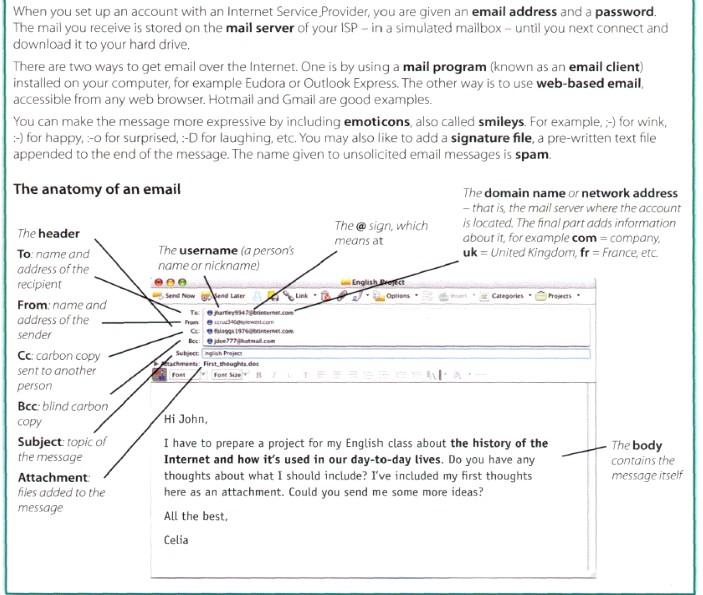
EMAIL FEATURES
THE WEB
What the Web is
It is a network of documents that works in a hypertext environment, i.e. using text that contains links, hyperlinks to other documents.
The files, web pages, are stored in computers, which act as servers. Your computer, the client, uses a web browser, a special program to access and download them. The web pages are organized in websites, groups of pages located on the Web, maintained by a webmaster. The Web enables you to post and access all sorts of interactive multimedia information and has become a real information highway.
How to surf the Web
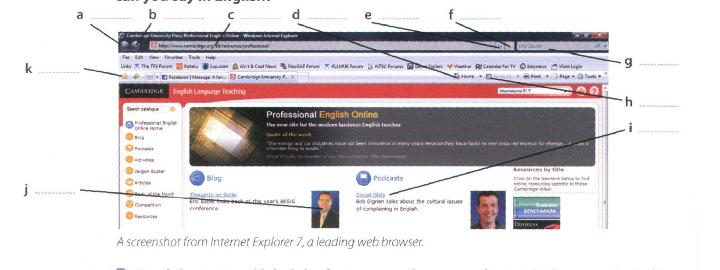
To surf or navigate the Web, you need a computer with an Internet connection and a web browser. After you have launched it, you must type the website address or URL (Uniform Resource Locator), which may look like this:
http://www.cup.org/education/sample.htm
http://: indicates the type of protocol that the server and browser will use to communicate. Here it is Hypertext Transfer Protocol.
www. : shows that it is a resource on the World Wide Web.
cup.org: is the domain name of the web server that hosts the website.
education: is the path, the place where a web page is located.
sample.htm : is the filename or name of a single web page.
The different parts are separated by full stops [.] and forward slashes [/]. When we say a URL, we say “dot” [.] and “slash” [/]
To find interesting sites you can use search engines, like Google, Bing or Yahoo, where the website information is compiled by robots called spiders, or through web indexes, subject directories that are selected by people and organized into hierarchical subject categories. Some web portals, websites that offer all types of services, e.g. email, forums, search engines, etc., are also good starting points.
The most relevant websites addresses can be stored in your computer using the bookmarks or favourites function in your browser.
Websites usually have a home page, from which you can navigate by clicking your mouse on hyperlinks in texts or images.
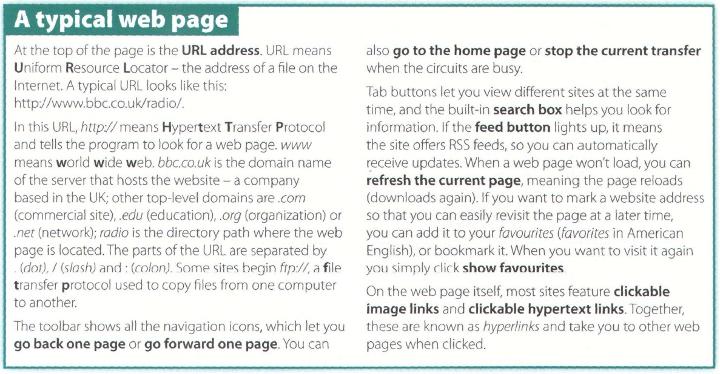
A typical web page (text and activity)
Refer to the picture as your read the text, then in the exercice below label the features with the terms in bold.
Tour of the collectives of cyberspace
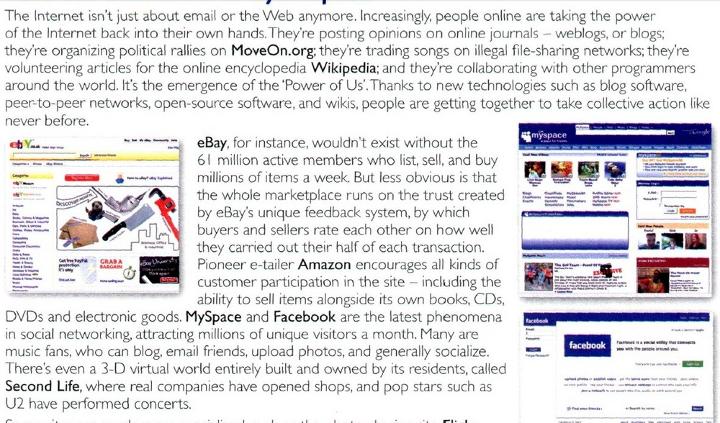
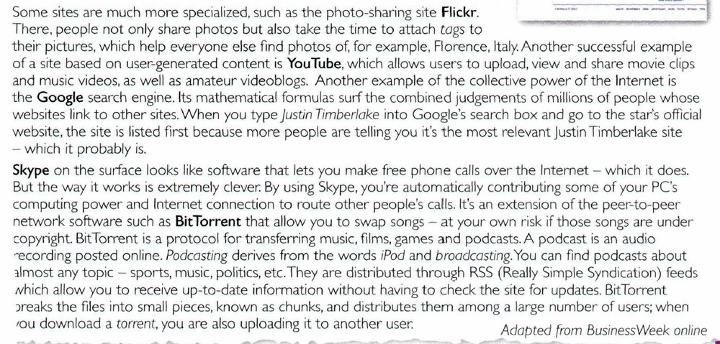
Read the text and find websites for the tasks:
Find words in the article with the following meanings.
WEEK 6 :
NETIQUETTE
http://youtu.be/kWFFKlEC7sU
Netiquette rules for electronic communication
Click http://edtech2.boisestate.edu/frankm/573/netiquette.html link to open resource.
INTERNET SECURITY
http://youtu.be/a8hZQxWC3A8
INTERNET SECURITY
A. Internet crime
The Internet provides a wide variety of opportunities for communication and development, but unfortunately it also has its dark side.
Crackers, or black-hat hackers, are computer criminals who use technology to perform a variety of crimes: virus propagation, fraud, intellectual property theft, etc. Internet-based crimes include scam, email fraud to obtain money or valuables, and phishing.
Due to its anonymity, the Internet also provides the right environment for cyber stalking, online harassment or abuse, mainly in chat rooms or newsgroups. Piracy, the illegal copying and distribution of copyrighted software, information, music and video files, is widespread. But by far the most common type of crime involves malware.
B. Malware : viruses, worms, trojans and spyware
Malware is malicious software created to damage or alter the computer data or its operations.
· Viruses are programs that spread by attaching themselves to executable files or documents. When the infected program is run, the virus propagates to other files or programs on the computer. Some viruses are designed to work at a particular time or on a specific date. An email virus spreads by sending a copy of itself to everyone in an email address book.
· Worms are self-copying programs that have the capacity to move from one computer to another without human help, by exploiting security flaws in computer networks. Worms are self-contained and don’t need to be attached to a document or program the way viruses do.
· Trojan horses are malicious programs disguised as innocent looking files or embedded within legitimate software. Once they are activated, they may affect the computer in a variety of ways: some are just annoying, others are more ominous, creating a backdoor to the computer which can be used to collect stored data? They don’t copy themselves or reproduce.
· Spyware is software designed to collect information from computer for commercial or criminal purposes. It usually comes hidden in fake freeware or shareware applications downloadable from the Internet.
· Keystroke logger or keylogger records characters that are typed inside a computer.
C. PC Security: recommendations
Fight off nasty viruses, worms, and Trojan horses by following these simple rules.
Keep your antivirus software updated. It's not enough to have the software installed, you also need to keep up with new viruses as they emerge. "Your antivirus software is only as good as your latest virus definitions set," says Kelly Martin, senior product manager for Symantec's Norton AntiVirus.
Do not open any attachment. You get a message you think is from a friend with what looks like a cool file attached, so you click on it. Next thing you know, you're Typhoid Mary, spewing out infected e-mails to everyone in your address book. That's how the Sobig.F worm spread--and it happened so quickly that millions of copies got out before the antivirus companies could update their databases.
"Never trust an e-mail 'from' address," adds Chris Wysopal, director of research for security consultants @Stake. "And never open an attachment without verifying it was sent by a trusted person, and they meant to send it to you."
Avoid bogus file downloads. Be wary of any Web site that requires you to download software to view a page, unless it's something familiar like a Flash plug-in or Acrobat Reader. The file may contain a virus or a Trojan horse. Do not install software via the Web unless you are absolutely sure what it is and that you trust the company you are downloading it from.
Make a rescue disk and keep it handy. When things go bad, a boot or rescue disk is your first step to recovery. At minimum, you'll want to put the basic elements of your operating system on a disk, so you can bypass the hard disk at start-up. A better idea: use your antivirus program to create a rescue disk you can use when your system gets infected. Label it with a date and store it near your system where you won't lose it.
Make backups. Back up your data files at least weekly (daily if you're running a business). Even if you fall victim to a virus or hacker attack, you'll escape with only minor damage.
Complete this crossword puzzle with some of the underlined words in the text below.
Non-exhaustive GLOSSARY of terms used in the vocabulary activities
- Arrow keys: they are used to move the cursor, as an alternative to the mouse.
- Backspace: It removes the character to the left of the cursor or any selected text.
- Bluetooth: a system for connecting electronic equipment such as mobile phones, computers and electronic organizers to each other and to the Internet using radio signals
- Bogus: false, counterfeited
- Browse: to search for and read hypertext, esp. on the World Wide Web
- Bulletin board: A place on a computer system where users can read messages and add their own.
- Caps Lock: It produces UPPER CASE characters.
- Chat: A discussion with someone on the Internet
- CPU: The brain of the computer.
- Cracker: a synonym for hacker
- Ctrl: It works in combination with other keys. for example, you press this key and C to copy the selected text.
- Data: information
- Digitize: Describes information, music, an image, etc. that is recorded or broadcast using computer technology, to put information into the form of a series of the numbers 0 and 1, usually so that it can be processed by a computer
- To download: to copy or move programs or information into a computer's memory, especially from the Internet or a larger computer
- Email: A message or document sent over the internet. Sent messages are stored in electronic mailboxes until the recipient fetches them.
- Embed: implant, enclose, insert
- Ergonomic: Designed to maximize productivity by minimizing operator fatigue and discomfort
- Forum: A place on the Internet where people can leave messages or discuss particular subjects with other people
- Freeware: computer programs that you can often copy from the Internet and do not have to pay for
- Hacker: someone accessing another’s computer without authorization
- Harassment: behaviour that annoys or upsets someone
- Hard drive/disk: Magnetic device used to store information.
- Hardware: The mechanical, magnetic, electronic, and electrical components making up a computer system, Physical parts that make up a computer system.
- Input: The information which is presented to the computer.
- Keyboard: an input device that enters data with letters, numbers, symbols, and special function keys.
- Malware computer software that is designed to damage the way a computer works
- Main memory: Section that holds programs and data while they are executed or processed.
- Monitor: the screen of a computer.
- Mouse : a hand-operated electronic device that controls the coordinates of a cursor on your computer screen as you move it around on a pad.
- Network: A large system consisting of many similar parts that are connected together to allow movement or communication between or along the parts or between the parts and a control centre
- Output: Results produced by a computer.
- Peripherals: Input devices attached to the CPU.
- Phishing The act of sending an e-mail to a user falsely claiming to be an established legitimate enterprise in an attempt to scam the user into surrendering private information that will be used for identity theft
- Ports: Sockets into which an internal device may be connected.
- Printer: an output device that prints the results of data processing
- Return/Enter: It moves the cursor to the beginning of a new line or it confirms commands.
- Scam: an illegal plan for making money
- Shift: It produces UPPER CASE letters, but it does not affect numbers and symbols.
- Shareware: computer programs that you are allowed to use for a short period before you decide whether or not to buy them
- Software: Computer program, Programs which can be used on a particular computer system.
- Store: to enter or retain (information) in a storage device
- Space bar: A long key a the bottom of the keyboard.Each time it is pressed , it produces a blank space.
- Tab: It moves the cursor horizontally to the right for a fixed number of spaces.
- Video conferencing: Communicating long distance using voice and video
- Supercomputer: largest and fastest computers, capable of storing and processing tremendous volumes of data.
- Virtual: Describes something that can be done or seen using a computer and therefore without going anywhere or talking to anyone.
- Word Processing: the use of software application to create, edit, format, print and save text-based documents, such as letters, reports, and memos